
Allowing Dodona in Microsoft Entra ID
This page is written for the IT administrators of a school, college or university. It contains everything you need to review Dodona's Microsoft application and to allow it in your own Microsoft Entra tenant, so that your users can sign in to Dodona with their institutional Microsoft account.
Students and teachers don't need anything on this page. They simply sign in at dodona.be and pick their institution.
About Dodona
Dodona is an online exercise platform for learning to code. The web application was developed at Ghent University to support practical sessions for large groups of students. Dodona focuses primarily on the automatic testing and feedback for submitted solutions to programming exercises. Currently, Dodona supports more than 20 programming languages, including Python, JavaScript, HTML, Java, Kotlin, C, C#, C++, Bash, Prolog, Haskell, SQL and R.
Dodona is developed and operated by Dodona Learning Technologies BV.
Why you might be reading this
Dodona uses Microsoft Entra ID (formerly Azure AD) to sign in users with their institutional Microsoft 365 account. Some institutions restrict which third-party applications their users may consent to. In that case Microsoft blocks the sign-in, and your users can only get in once you explicitly allow the Dodona application.
We now use our own application registration
Until recently, signing in to Dodona with a Microsoft account went through an application registration managed by Ghent University. Dodona now has its own application registration, the one described below.
If your institution explicitly allowed the previous application, that approval doesn't carry over. You need to allow this application as well.
The application registration
| Property | Value |
|---|---|
| Display name | Dodona |
| Application (client) ID | 060c642b-473b-4423-a9f6-dfc67066deb6 |
| Publisher | Dodona Learning Technologies |
| Publisher domain | dodona.be |
| Supported account types | Accounts in any organizational directory (multitenant) and personal Microsoft accounts |
| Redirect URI | https://dodona.be/users/auth/microsoft/callback |
The application is publisher verified by Microsoft, which means Microsoft has verified that Dodona Learning Technologies is the organisation publishing it. You can recognise this by the blue Verified badge on the consent prompt and on the application's page in the Microsoft Entra admin center.
Which permissions Dodona requests
Dodona requests three delegated Microsoft Graph permissions, and nothing else:
openid: sign the user in and receive an ID token. This is the permission that makes single sign-on work at all.email: read the primary email address of the signed-in user.profile: read the basic profile of the signed-in user, such as their name.
These are the three OpenID Connect scopes that Microsoft describes as the minimum for basic sign-in. All three are in the tier that does not require administrator consent.
Dodona makes no Microsoft Graph API calls
Dodona never calls the Microsoft Graph API. The permissions above exist only so that Microsoft issues an ID token when someone signs in. Dodona reads a few claims from that token and then discards the token itself:
oidandtid: the immutable identifiers of the user and of your tenant. Dodona uses these to recognise a returning user and to link the account to your institution.email,given_name,family_name,preferred_usernameandname: the user's email address and name, used to fill in their Dodona profile.
That is the complete list. There is no background service, and nothing with which Dodona could query your directory.
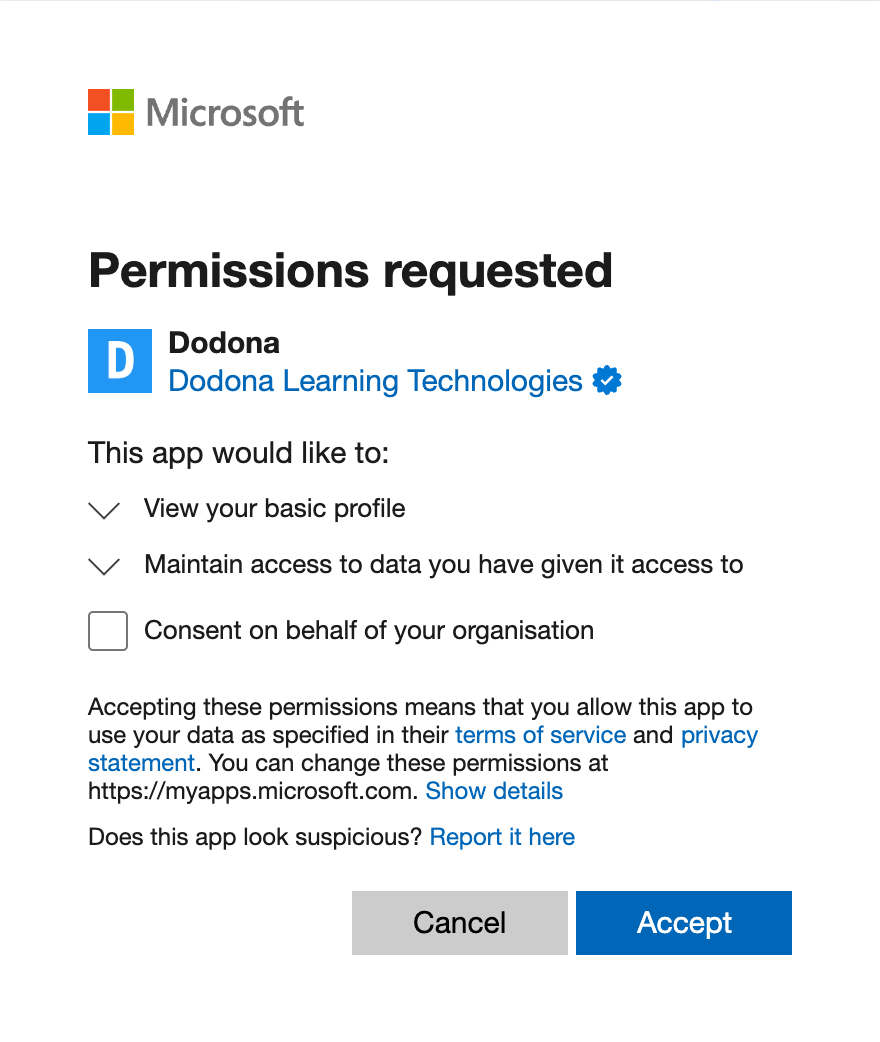
This is what a user sees when signing in to Dodona for the first time:
Why the consent screen mentions "Maintain access to data you have given it access to"
Microsoft's consent screen shows this line for every application, including ones that never ask for it. It corresponds to the offline_access scope, and Microsoft documents that it "currently appears on all consent pages, even for flows that don't provide a refresh token".
Dodona does not request offline_access. Its sign-in requests ask for openid, email and profile only, which is exactly what you see on the application's API permissions page. Microsoft only issues a refresh token to an application that explicitly requests that scope, so Dodona never receives one.
Concretely, this means that:
- Dodona never receives, stores or asks for the user's Microsoft password. Authentication happens entirely on Microsoft's own sign-in pages.
- Dodona requests no access to mail, files, calendars, Teams or directory data.
- Dodona has no access to anything in your tenant beyond the sign-in itself.
What Dodona does with the personal data it receives is described in our data policy.
Allowing the application
Which of the following applies depends on your tenant's consent configuration. Granting tenant-wide admin consent is the most predictable option, and the one we usually ask for.
Reviewing the application in your tenant
Once at least one of your users has attempted to sign in, the Dodona application appears in your tenant under Enterprise applications in the Microsoft Entra admin center. Search for Dodona, or filter on the application ID above if you have several results. Microsoft documents this in View enterprise applications.
From the application's Permissions page you can see exactly which permissions have been requested and granted.
Granting tenant-wide admin consent
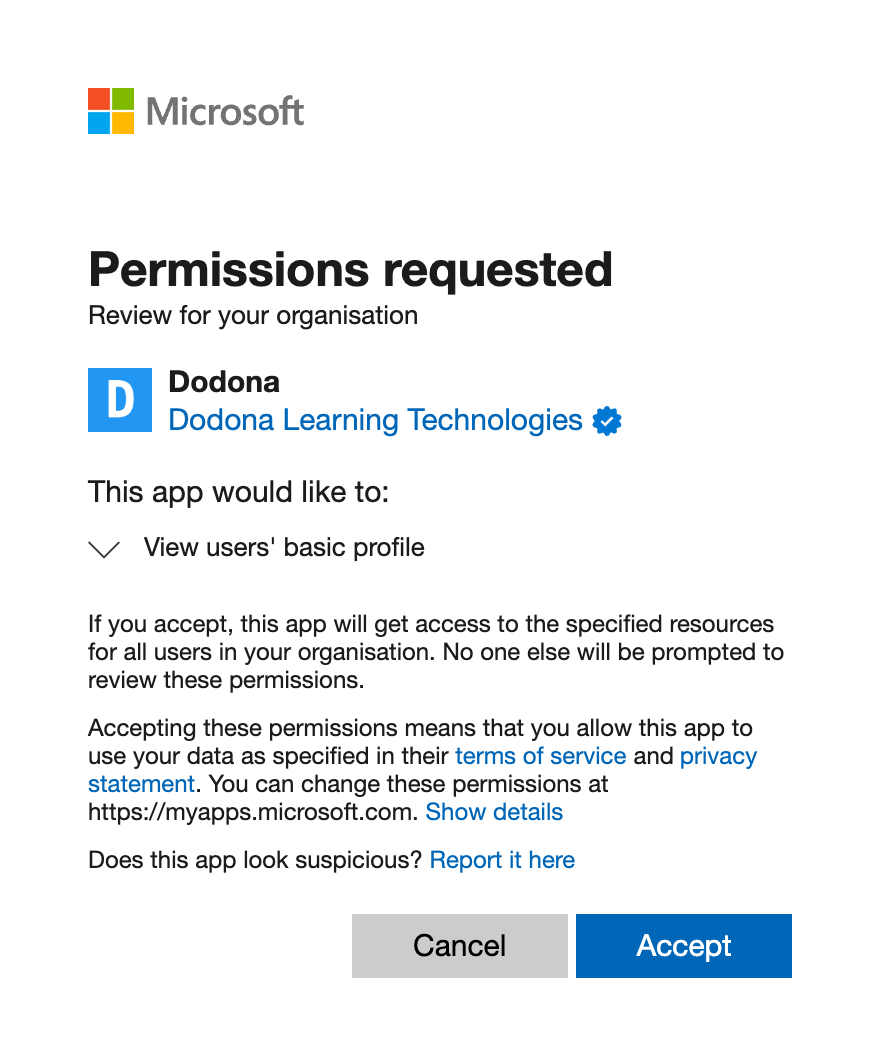
Granting admin consent on behalf of your organisation means your users are never prompted for consent themselves. You do this from the application's Permissions page under Enterprise applications, as described in Grant tenant-wide admin consent to an application.
This is what the admin consent screen looks like:
If the application isn't in your tenant yet, you can also start the consent flow directly. Open the following URL while signed in with an account that may consent on behalf of your organisation, and replace {tenant} with your tenant ID or one of your verified domain names:
https://login.microsoftonline.com/{tenant}/adminconsent?client_id=060c642b-473b-4423-a9f6-dfc67066deb6Granting consent requires a role such as Cloud Application Administrator or Privileged Role Administrator.
Your user consent settings
If you'd rather not consent on behalf of everyone, your users can consent for themselves, depending on the user consent setting of your tenant. You can find it under Enterprise applications > Consent and permissions > User consent settings, documented in Configure how users consent to applications.
Allow user consent for apps: your users can consent to Dodona themselves and you don't need to do anything.Allow user consent for apps from verified publishers, for selected permissions: Dodona is publisher verified, so it meets the publisher half of this policy. The requested permissions also have to be classified as low impact in your tenant. If they aren't, addopenid,emailandprofileto your permission classifications, or grant admin consent instead.Do not allow user consent: an administrator has to consent. Either grant tenant-wide admin consent as described above, or enable the admin consent workflow so that users can request approval from within the sign-in flow.
Restricting who can sign in
Allowing the application doesn't oblige you to open it up to everyone. You can set Assignment required on the application and then assign only the users or groups that should be able to sign in to Dodona, as described in Assign users and groups to an application. Note that applications requiring assignment always need administrator consent, even when your user consent settings would otherwise allow users to consent themselves.
Still stuck?
If sign-in keeps failing after you allowed the application, or if you need something we haven't listed here (a DPA, an extra security questionnaire, a different redirect URI for a test setup), use the contact form at dodona.be/en/contact. We're happy to help, and all comments and suggestions are more than welcome.
For questions about accounts on Dodona in general, see the FAQ about accounts and settings.