
The Python Sandbox
For Python exercises, Dodona has a built-in sandbox: a window in which you can write and run Python code directly in your browser, without installing anything on your computer. The sandbox is ideal for quickly trying something out: experiment with a few lines of code, test your solution with your own input, or step through your program with the built-in debugger to see exactly what it does. Code you run in the sandbox is not submitted to Dodona and is not evaluated by the judge; when you are happy with your code, you submit it in the usual way, as explained in Solving Exercises.
Opening the Sandbox
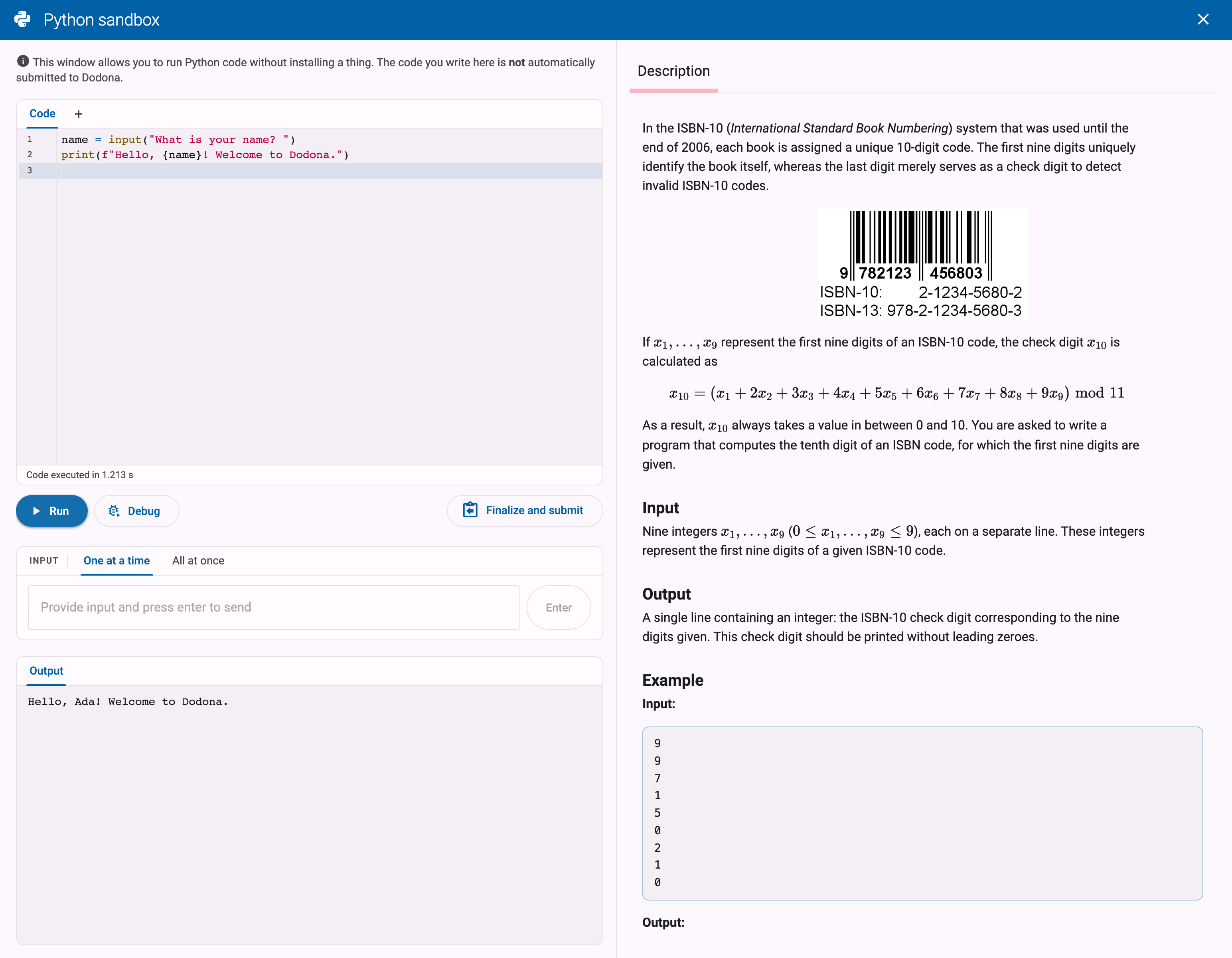
The sandbox is available on the page of every Python exercise. At the bottom of the panel where you submit your solution, next to the submit button, you will find the To sandbox button. Clicking it opens the Python sandbox in a panel on top of the exercise page.

The sandbox consists of two halves:
- On the left you will find a code editor with a
Runbutton, a field to provide input, and the output of your code. - On the right, the
Descriptiontab shows the exercise description, so you can keep reading the assignment while you write your code.
If you had already written code in the editor of the exercise page, the sandbox automatically starts from that code. If the sandbox already contains different code from an earlier session, Dodona first asks whether you want to overwrite it with your latest changes.
The first run can take a moment
The sandbox runs Python entirely in your browser. The first time you run code, your browser still has to download and start the Python environment, so it can take a little while before you see any output. Subsequent runs are much faster.
Running Code
Write your code in the editor on the left and click Run. The output of your program appears in the output panel below. While your code is running, you can interrupt it at any time with the Stop button.
Some more things the sandbox can do:
- Input: if your program reads input (for example with
input()), you can simply type your answer in the input field when your program asks for it, and press enter. Prefer to prepare all input beforehand? The input panel has two tabs: onOne at a timeyou answer each question at the moment your program asks it, and onAll at onceyou enter all input lines in advance. - Turtle graphics: if your code draws with the
turtlemodule, the drawing appears in a separateTurtletab next to the textual output. - Packages: when your code imports a package, the sandbox automatically tries to install it. Most commonly used packages work; packages that need access to your operating system do not work in the browser.
- Files from the exercise: files that come with the exercise can be loaded into the sandbox automatically, and you can drag links or images from the exercise description into the sandbox to use them in your code.
Submitting Your Code
Code in the sandbox is never submitted automatically. Once your code does what you want, click Finalize and submit: this copies your code from the sandbox to the editor of the exercise page, where you can review it one last time and submit it. Only then is your solution evaluated by the judge, as described in Understanding Feedback.
Sandbox code is not saved
Dodona does not store the code you write in the sandbox. If you close the page without copying your code to the editor and submitting it, your work may be lost. Submit regularly!
Debugging Step by Step
The sandbox also contains a debugger (based on the well-known Python Tutor) that executes your program step by step. This is very useful if your program does something different from what you expected: instead of guessing, you can watch exactly what happens at each step.
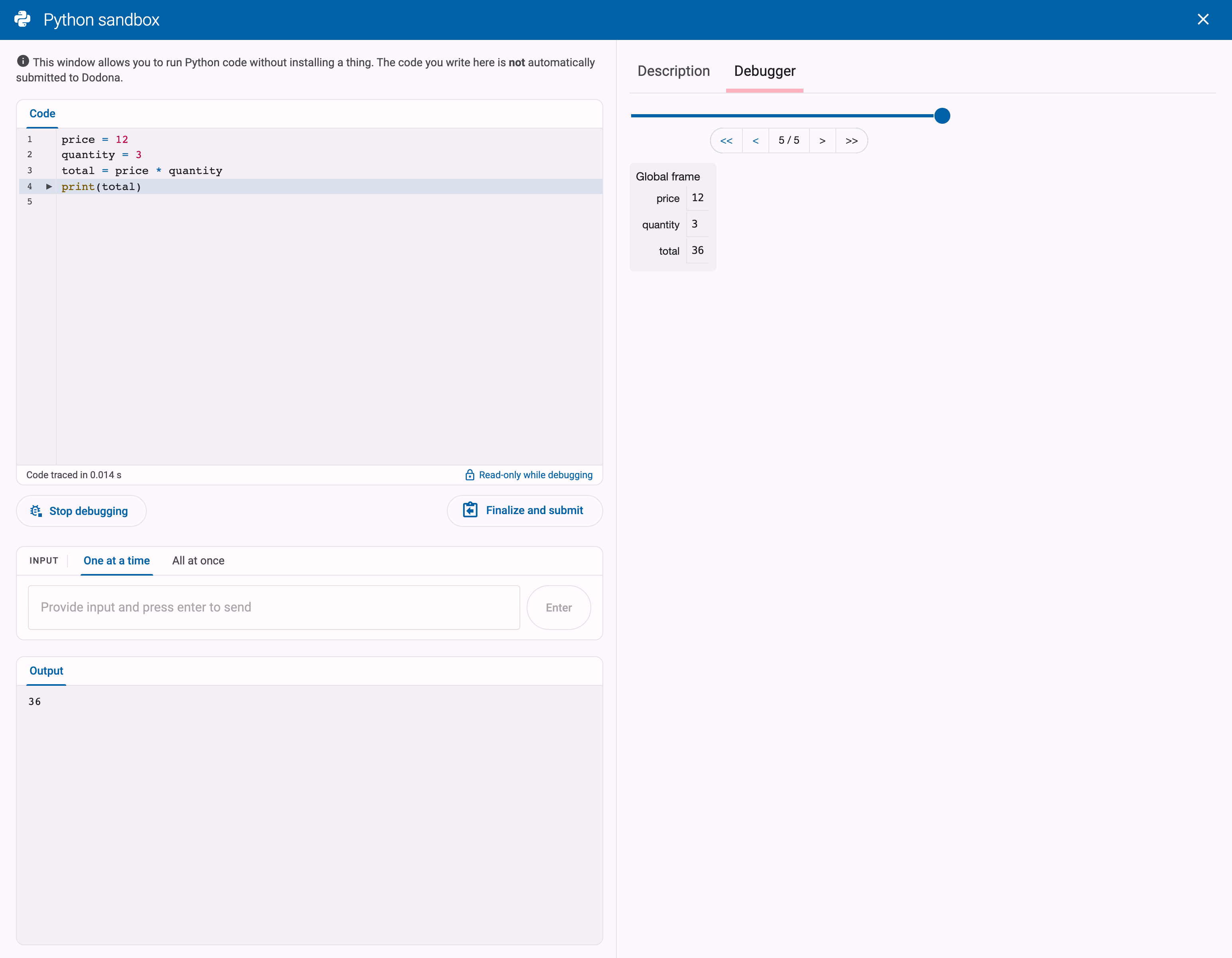
Click the Debug button next to Run to start the debugger. The right half of the sandbox switches to the Debugger tab, where you can walk through your program:
- Drag the slider to move through the steps of your program, or use the arrow buttons to go to the previous, next, first or last step.
- At each step, the debugger shows which line is being executed and how your program builds and stores information: the variables that exist at that point and their values.
- Click
Stop debuggingto return to normal mode.
Debugging a Failed Test Case
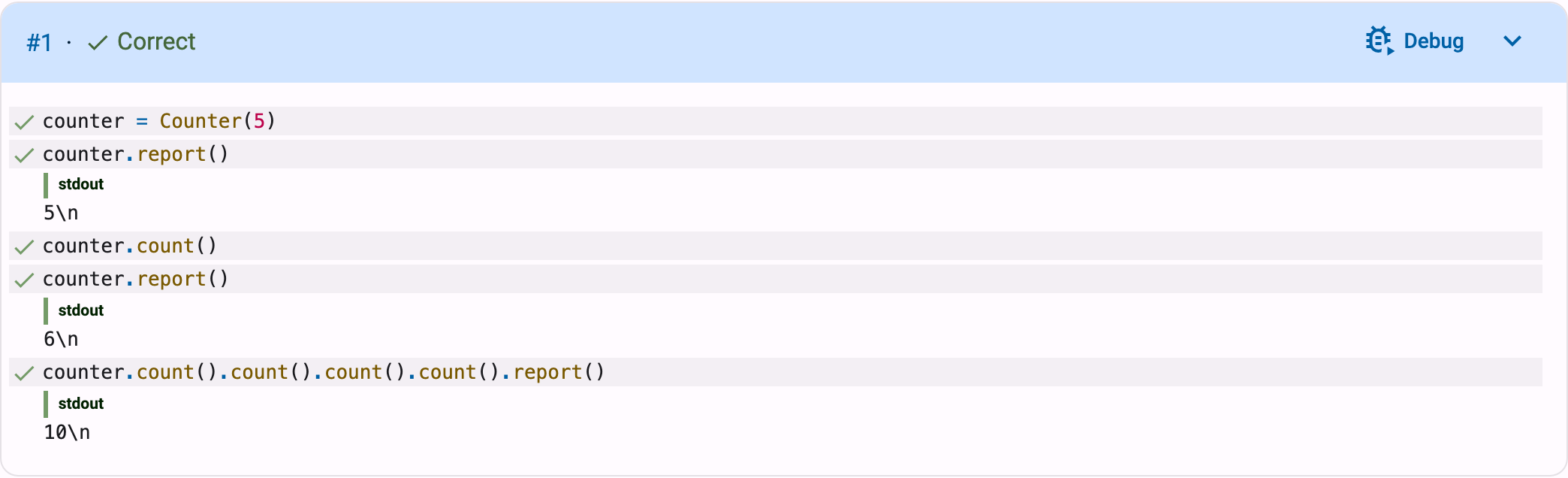
You can also start the debugger straight from the feedback on a submission. On the feedback page of a Python exercise, test cases show a Debug button. Clicking it opens the sandbox with the code of your submission, runs that specific test case with the same input the judge used, and opens the Debugger tab. Above the debugger, under Test case being debugged, you can see which test case you are stepping through. This way you can follow, step by step, exactly where your submission goes wrong for a failed test.
Limitations
The sandbox is a tool for experimenting, not a replacement for submitting:
- Your code runs in your browser, not in the environment the judge uses. Running code in the sandbox never produces a submission, and only the judge determines whether your solution is correct.
- Not all packages are available in the browser, and heavy computations may run slower than on the judge.
- Sandbox code is not saved by Dodona: copy your code to the editor and submit it to keep it.
The sandbox is only available for Python exercises. For other programming languages, we recommend working in an IDE and submitting your solution on Dodona.